Why Your Clinic Website Needs an Embedded Booking System
Your clinic website is often the first touchpoint for potential patients. But if visitors have to call or email to book an appointment, you're losing up to 70% of them. Studies show that 67% of patients prefer online booking, and 40% of appointments are booked outside business hours.
An embedded booking widget transforms your website from a digital brochure into a patient acquisition machine – capturing appointments 24/7, even while you sleep.
Types of Website Booking Integration
1. Embedded Widget
A booking calendar that appears directly on your website page:
- Pros: Seamless experience, keeps patients on your site, fully customizable
- Cons: Requires some technical setup
- Best for: Clinics wanting a professional, integrated experience
2. Pop-up/Modal Booking
A booking form that appears in an overlay when clicked:
- Pros: Easy to implement, attention-grabbing
- Cons: Can feel intrusive, some users have pop-up blockers
- Best for: Landing pages and promotional campaigns
3. Booking Button/Link
A prominent button that redirects to a hosted booking page:
- Pros: Simplest implementation, works on any website
- Cons: Takes patients away from your site
- Best for: Quick setup or websites with limited customization
4. Floating Action Button
A persistent "Book Now" button that stays visible as users scroll:
- Pros: Always accessible, mobile-friendly
- Cons: Can clutter the interface
- Best for: Content-heavy websites
Essential Features for Healthcare Booking Widgets
Service Selection
Let patients choose what they need:
- General Consultation
- Follow-up Visit
- Specific procedures or tests
- Teleconsultation option
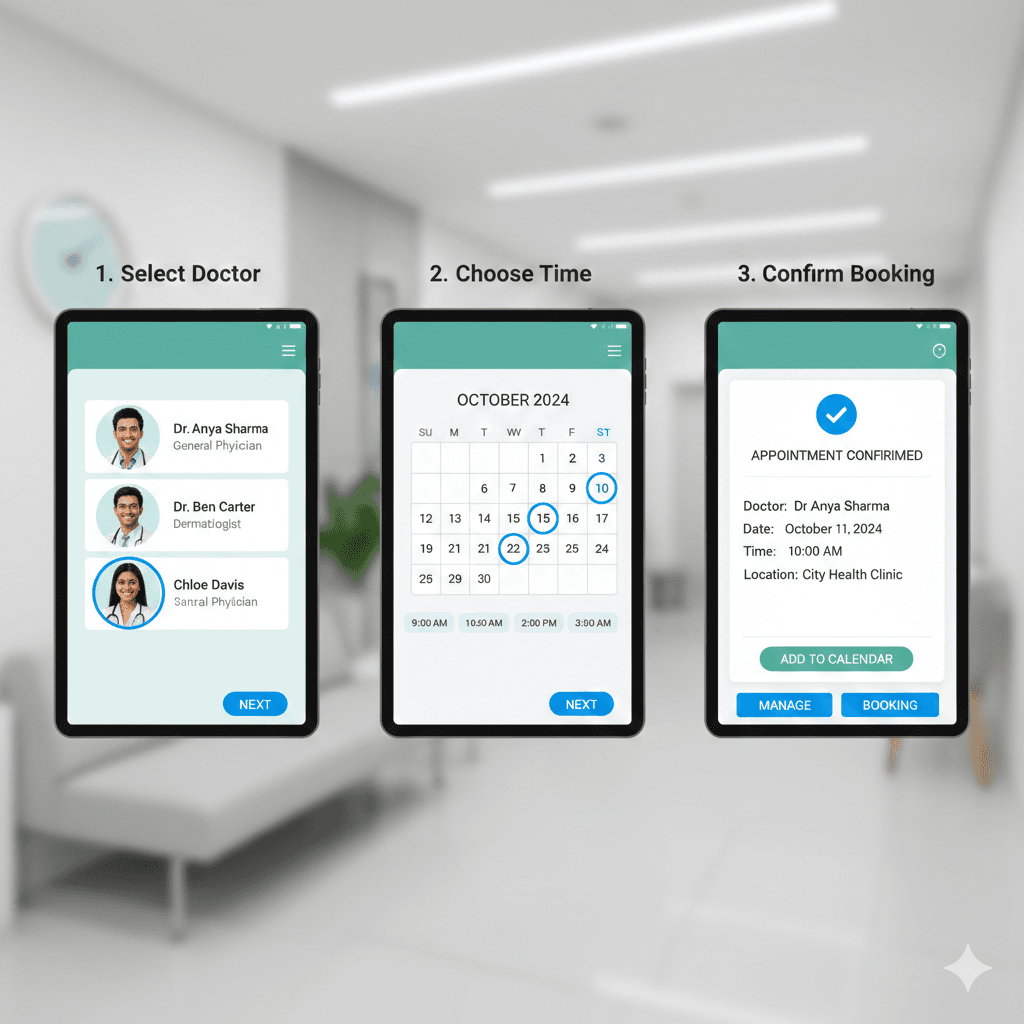
Doctor Selection
For multi-doctor clinics:
- Doctor profiles with photos
- Specializations listed
- Individual doctor availability
- "Any available doctor" option for urgent cases
Calendar View
Show availability clearly:
- Weekly or monthly view
- Available slots highlighted
- Booked slots greyed out
- Real-time updates
Patient Information Form
Collect necessary details:
- Name, phone, email
- Reason for visit (optional)
- Insurance information (if applicable)
- New vs returning patient
Confirmation & Follow-up
After booking:
- On-screen confirmation
- Email confirmation
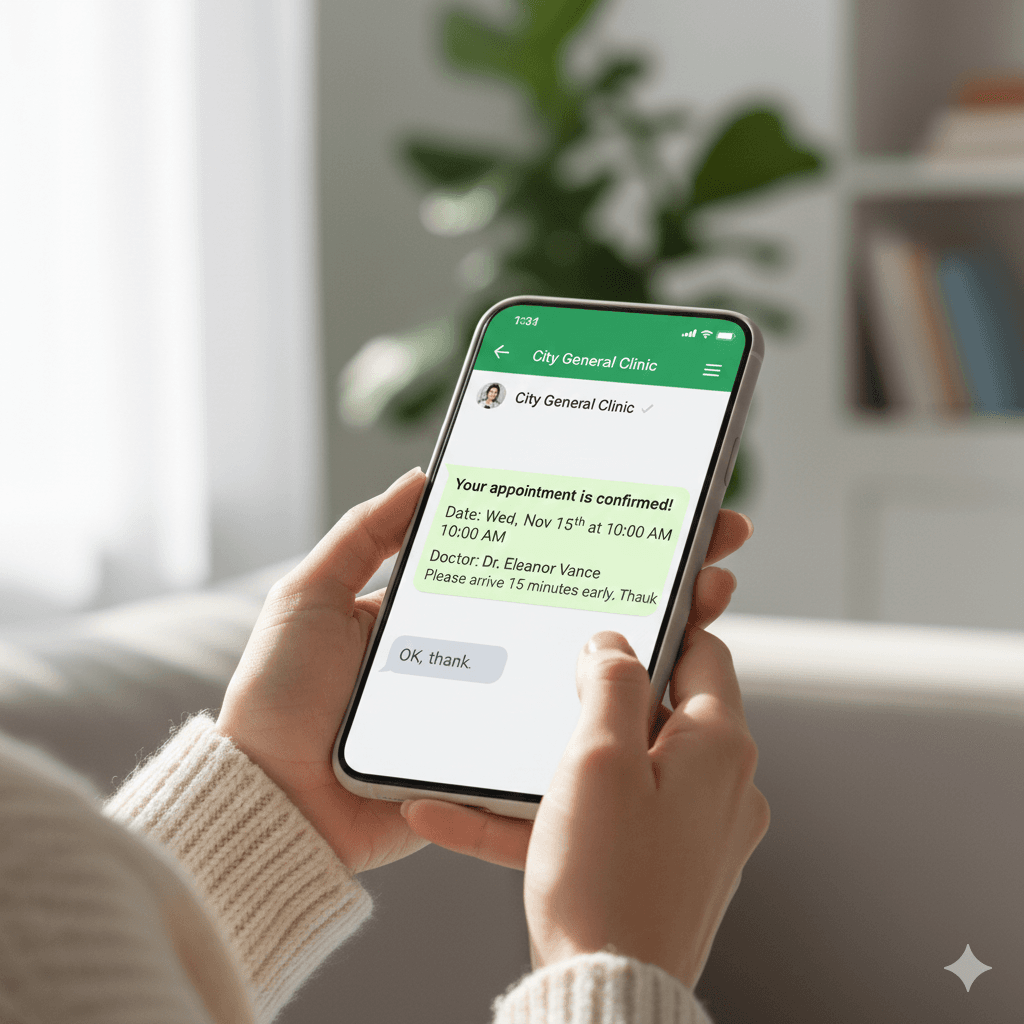
- WhatsApp/SMS confirmation
- Calendar invite option
Design Best Practices
Match Your Brand
The booking widget should feel like part of your website:
- Use your brand colors
- Match typography
- Include your logo
- Consistent button styles
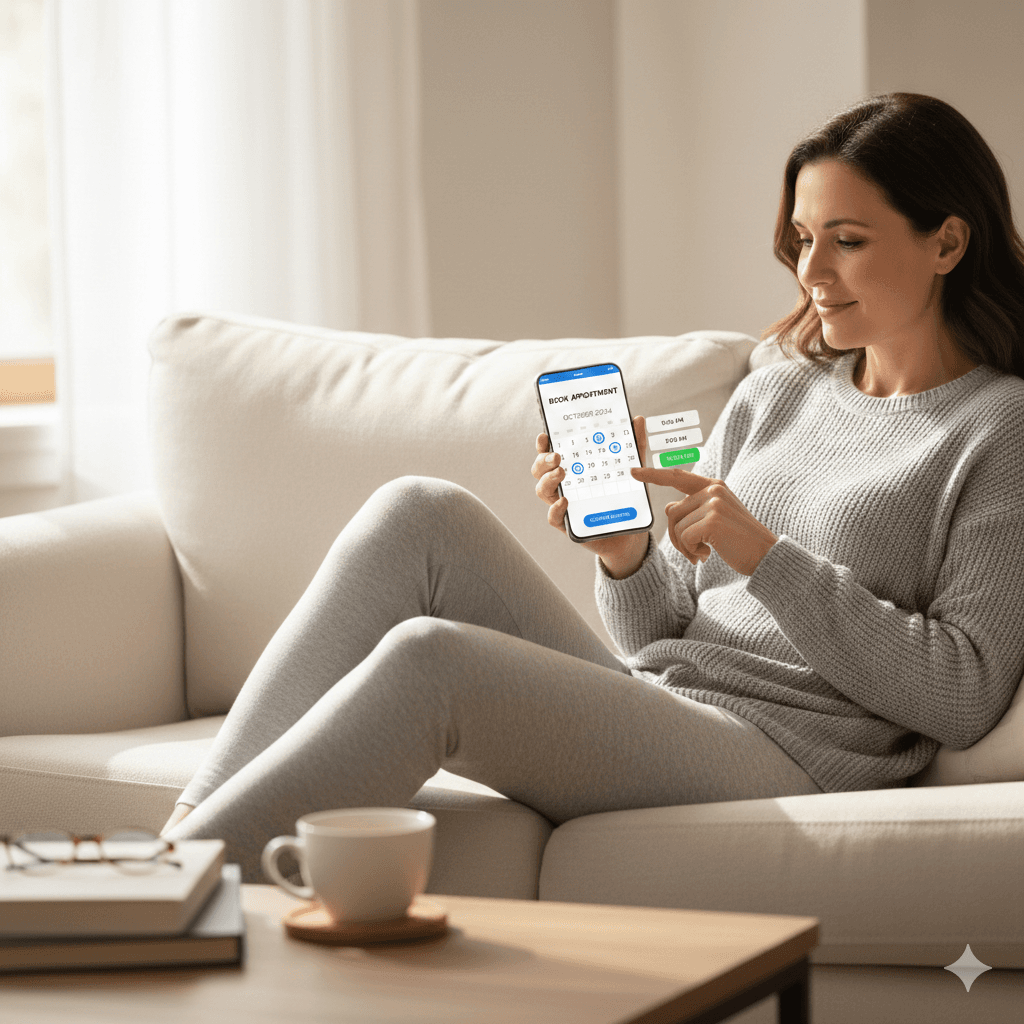
Mobile-First Design
Over 60% of healthcare website visits are from mobile devices:
- Touch-friendly buttons (minimum 44px)
- Easy date/time selection on small screens
- Minimal typing required
- Fast loading on mobile networks
Clear Call-to-Actions
- Prominent "Book Appointment" buttons
- Contrasting colors for visibility
- Multiple placement points on the page
- Urgency indicators where appropriate
Trust Indicators
Build confidence in online booking:
- Security badges (SSL, encrypted)
- No payment required to book (if applicable)
- Easy cancellation/reschedule policy
- Patient testimonials nearby
Implementation Options
Simple Embed Code
Most booking systems provide an embed code that you paste into your website:
<!-- TDAppointments Booking Widget -->
<div id="td-booking-widget"
     data-clinic="your-clinic-id"
     data-theme="light"
     data-color="#008080">
</div>
<script src="https://widget.tdappointments.com/embed.js">
</script>
WordPress Plugin
For WordPress sites, plugins offer easier integration:
- Install plugin from dashboard
- Enter API credentials
- Use shortcode: [td_booking]
- Or use Gutenberg block
Custom Integration
For advanced needs, API integration allows:
- Custom booking flows
- Integration with existing patient portals
- Advanced business logic
- Complete design control
Placement Strategies
Homepage
Your homepage should have booking access within the first scroll:
- Hero section CTA button
- Embedded mini-widget in sidebar
- Floating action button
Doctor Profile Pages
Each doctor's page should have their booking calendar:
- Full embedded calendar below bio
- "Book with Dr. [Name]" button
- Shows only that doctor's availability
Services Pages
Service descriptions should link to booking:
- "Book This Service" buttons
- Pre-selected service type
- Related doctors shown
Contact Page
Replace or supplement contact forms:
- Full booking widget
- "Book Instead of Calling" messaging
- 24/7 availability highlighted
Regional Compliance Considerations
USA (HIPAA)
- Encrypted data transmission
- Secure patient information handling
- BAA (Business Associate Agreement) with booking provider
Europe (GDPR)
- Explicit consent for data collection
- Cookie consent notification
- Data processing agreement
- Right to erasure support
UK (UK GDPR + DPA 2018)
- Similar to EU GDPR
- ICO registration consideration
- Clear privacy policy linking
India
- DPDP Act compliance (emerging)
- Reasonable security practices
- Consent for marketing communications
Measuring Widget Performance
Track these metrics to optimize your booking widget:
- Widget Views: How many see the booking option
- Start Rate: Percentage who begin booking
- Completion Rate: Bookings divided by starts
- Drop-off Points: Where users abandon
- Time to Book: Average booking duration
- Source Attribution: Which pages convert best
TDAppointments Website Integration
Our platform offers flexible website integration options:
- Embed Code: Simple copy-paste for any website
- WordPress Plugin: One-click installation
- React/Vue Components: For modern web apps
- API Access: For custom implementations
- White-label: Complete brand customization
Customization Options
- Colors and fonts matching your brand
- Logo and custom headers
- Form field configuration
- Multi-language support
- Custom confirmation messages
Getting Started
Add online booking to your website in under 30 minutes:
- Sign up for TDAppointments
- Configure your services and availability
- Customize widget appearance
- Copy embed code to your website
- Start accepting online appointments!
Not technical? Our support team can help you set up – free of charge for all paid plans.